
Getting started: from sign-up to your dashboard
Watch: getting started in 1 minute
 Play (1 min)
It takes about five minutes. Have your phone with you: you will need an authenticator app for step 5.
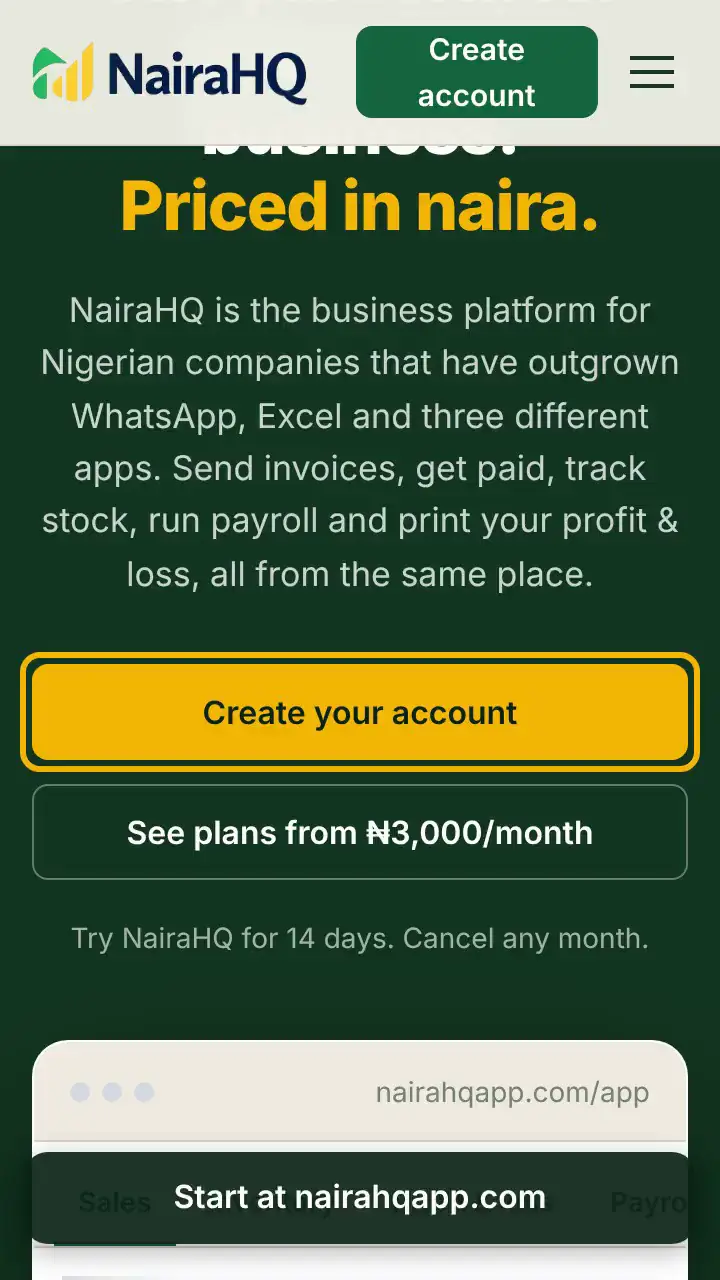
 On the NairaHQ home page, click Create your account. To compare plans first, click See plans.
 On the plans page, click Choose on the plan you want, for example Choose Starter. Every plan starts with a 14-day trial: you are not charged to start, and you choose whether to pay when the trial ends.
 On Create your account, check the Plan and Billing cycle, then fill in Your name, Email address and Company name. Choose a Password of at least 8 characters and type it again under Confirm password.
 Tick I agree to the Terms & conditions and the Privacy policy, then click Create account and open dashboard.
 Set up two-factor login. It is required for business owners, so NairaHQ takes you straight there. Scan the QR code with an authenticator app such as Google Authenticator or Microsoft Authenticator, type the 6-digit code it shows into Enter 6-digit authenticator code and click Confirm and enable 2FA. Sign in safely with two-factor login walks through it step by step.
 Click Copy codes and keep your recovery codes somewhere safe, away from your phone. Each one works once if you ever lose your phone, and they are not shown again. Then click Continue.
 Click Back to Dashboard. NairaHQ asks you to Verify your email address: we have sent a link to the address you signed up with. If it has not arrived, check your spam folder or click Resend verification email.
 Open the email Confirm your email address and tap Confirm email address. The link works for 60 minutes; after that, request a new one.
 NairaHQ opens your dashboard and shows Email verified. Welcome aboard.
 The banner at the top shows how many days of your trial are left. Click See plans when you are ready to choose a paid plan, and use Quick actions to create your first invoice.
Next: Set up your business, so your invoices carry your name, address and bank details.
Was this helpful?
Still stuck? Submit a ticket and tell us what happened. We will see that you read this article.